Convert Data To Underfolder
The Underfolder format is a general data representation
introduced by Pipelime, so you will often need to convert data coming from other sources
to the Underfolder format.
In this tutorial, you will write a samples sequence generator to convert the iris dataset
and you will learn how to call it from command line.
Warning
The purpose of the code you will see in this tutorial is purely didactic. Sometimes the implementation is sub-optimal and it is not intended to be used in any real-world scenario.
The Iris Dataset
The iris dataset is a classic dataset comprising 3 species of Iris of 50 instances each. For each instance, 4 features are provided: sepal length, sepal width, petal length, petal width.
The scikit-learn package provides a function to load the iris dataset as a dictionary:
from sklearn.datasets import load_iris

dataset = load_iris()
The output mapping contains the following keys:
data: a numpy array of shape(n_samples, n_features)containing the featurestarget: a numpy array of shape(n_samples,)containing the labelsfeature_names: a list of strings containing the feature namestarget_names: a list of strings containing the label names, ie, setosa, versicolor, virginica
Mapping such keys to the Underfolder format is straightforward:
data: each row of the array is a sampletarget: each value is the label ID of a samplefeature_names: the name of the features will be the names of the sample itemstarget_names: the name of the target labels can be saved once for all samples, so we will put them into a shared item
A Samples Sequence Generator
To write a samples sequence generator for the Iris dataset, we need to:
subclass
SamplesSequencewith thesource_sequencedecoratorgive it a title which will be the name of the method to call (see below)
implement the methods
def size(self) -> intanddef get_sample(self, idx: int) -> pls.Sample
Note that SamplesSequence is a pydantic model, so we must follow the pydantic rules when defining a class:
from typing import Mapping
from pydantic import Field, PrivateAttr

import numpy as np
from sklearn.datasets import load_iris

from pipelime.sequences import SamplesSequence, Sample, source_sequence
import pipelime.items as pli

@source_sequence
class IridDataset(SamplesSequence, title="iris"):
    """Samples sequence generator for the Iris dataset."""

    shared_items: bool = Field(
        True, description="Whether to include the shared items in each sample."
    )

    _shared_sample: Sample = PrivateAttr()
    _data_mtx: np.ndarray = PrivateAttr()
    _target_mtx: np.ndarray = PrivateAttr()
    _feature_names: Sequence[str] = PrivateAttr()

    def __init__(self, **data):
        super().__init__(**data)
        dataset = load_iris()
        self._shared_sample = self._make_shared_sample(dataset)
        self._data_mtx = dataset["data"]
        self._target_mtx = dataset["target"]
        self._feature_names = [
            fname[:-4].title().replace(" ", "")
            for fname in dataset["feature_names"]
        ]

    def _make_shared_sample(self, dataset) -> Sample:
        # A sample with shared items is created only once
        return Sample(  # a mapping of item keys to items
            {
                "targets": pli.YamlMetadataItem(  # a YAML metadata item
                    dataset["target_names"].tolist(),  # the content of the YAML
                    shared=True,  # the item is shared
                )
            }
        )

    def size(self) -> int:
        return self._data_mtx.shape[0]

    def get_sample(self, idx: int) -> Sample:
        sample = Sample(  # a mapping of item keys to items
            {
                # one numpy item for each feature and the target label
                **{
                    fname: pli.TxtNumpyItem(self._data_mtx[idx, i])
                    for i, fname in enumerate(self._feature_names)
                },
                "target": pli.TxtNumpyItem(self._target_mtx[idx]),
            }
        )
        if self.shared_items:
            # the shared sample is merged with the current sample
            sample = self._shared_sample.merge(sample)
        return sample
Note
The code fname[:-4].title().replace(" ", "") removes the final (cm) text, capitalizes the first letter of each word and strips any space.
Though not strictly necessary, the “Creating New Items” step needs this simple processing.
Hint
Pydantic is a powerful framework to enrich your classes with data parsing, validation and smart type checking. If you are not familiar with it, take a look at the official documentation.
Iris To Underfolder (Python)
When the module is imported, the iris method is automatically added to the SamplesSequence class, so you can call it as follows:
from pipelime.sequences import SamplesSequence
from pipelime.cli import pl_print

# create a samples sequence generator
iris_seq = SamplesSequence.iris()

# get the first sample
sample = iris_seq[0]

# print the sample
pl_print(sample)
To add a writing operation after the generator, just call the to_underfolder method:
iris_seq = iris_seq.to_underfolder("iris_dataset")
where “iris_dataset” is the path to the Underfolder to create.
Nothing has been written to disk yet, since the to_underfolder method is an operation
applied to each sample you grab from the sequence. Therefore, you can call run to
iterate over the whole sequence:
iris_seq.run()
Do you need more processing power? Let pipelime do the job for you:
iris_seq.run(num_workers=4, prefetch=10)
To wrap up, here is the full code:
from pipelime.sequences import SamplesSequence

iris_seq = SamplesSequence.iris().to_underfolder("iris_dataset")
iris_seq.run(num_workers=4, prefetch=10)
Iris To Underfolder (Command Line)
When working with the command line, you can add the new iris generator to a pipe command to write the full Underfolder to disk.
First, to create a configuration file for the pipe command you need to know its arguments:
$ pipelime pipe help
What you get is a table full with information, so let’s dig into it:
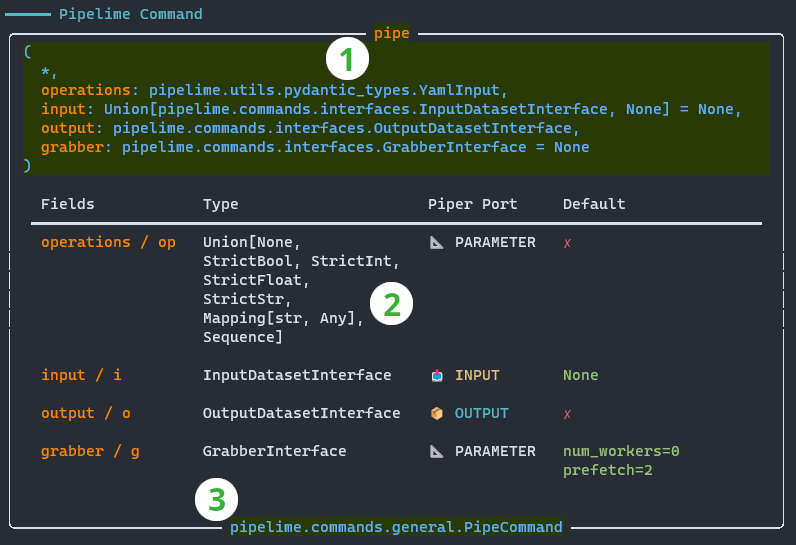
The title reports the name of the command and the full signature
The table body describes each argument of the command:
Fields: the name and its alias, if any
Type: the expected type of the argument
Piper Port: wether the argument is an input, an output or a parameter
Default: wether the argument has a default value or must be provided by the user
The footer shows the full class path of the command class
When using the command line, you must prefix its argument by either ++ or +.
Instead, when writing a configuration file, those arguments become keys of a dictionary:
op: ...
input: ...
output: ...
grabber: ...
Want to know more? Get a more verbose help with $ pipelime pipe help -v and $ pipelime pipe help -vv.
However, things get cluttered quickly, since each argument has its own sub-option tree to set,
so it’s better to show only what we need.
For example, copy-paste the full class path of output from the command signature to the help command line:
$ pipelime help pipelime.commands.interfaces.OutputDatasetInterface
What you get is a table with the sub-options of the output argument, which can be added
to the configuration file:
op: ...
input: ...
output:
  folder: path/to/output/folder
grabber: ...
Now we put the iris generator in the operation chain and remove both the input and grabber arguments, since they are not needed:
op:
  - iris
output:
  folder: path/to/output/folder
Finally, run the command:
$ pipelime -m path/to/iris_module.py pipe -c iris.yaml
Where path/to/iris_module.py is the file containing the IridDataset class, while iris.yaml is the configuration file.
Though this works, you may want to set the output folder on the command line, instead of hard-writing it in the configuration file. To do so, you can use the + prefix and the pydash notation to set the value of a nested key:
$ pipelime -m path/to/iris_module.py pipe -c iris.yaml ++output.folder path/to/output/folder
Hint
The output argument has a compact form <folder>[,<exists_ok>[,<force_new_files>]],
so you can also write +o path/to/output/folder or +o path/to/output/folder,true
to overwrite an existing dataset.
Tip
You can use as many configuration files as you want: all options will be merged together.